How to Create a Multiscreen Workout
1. Open the Multiscreen workout builder
2. Basic workout details
- Workout name
- Created by
- Body parts
- Fitness Category
- Fitness Type
- The Body parts field helps identify the main training focus, for example full body, upper body, lower body or core.
3. Fitness Category
- Cardio — endurance or heart-rate focused workouts
- Bodyweight — workouts mainly using bodyweight exercises
- Strength — resistance or strength-focused workouts
- Boxing — boxing-based sessions
- Mobility — mobility or flexibility sessions
- Funxtional — functional training formats
- Hyrox — Hyrox-specific or Hyrox-style workouts
4. Fitness Type
- HIIT — interval-based sessions
- Cardio — endurance-based sessions
- Booty — glute-focused workouts
- Core — core-focused sessions
- Stretching — flexibility or recovery sessions
5. MSS Type
6. Description fields
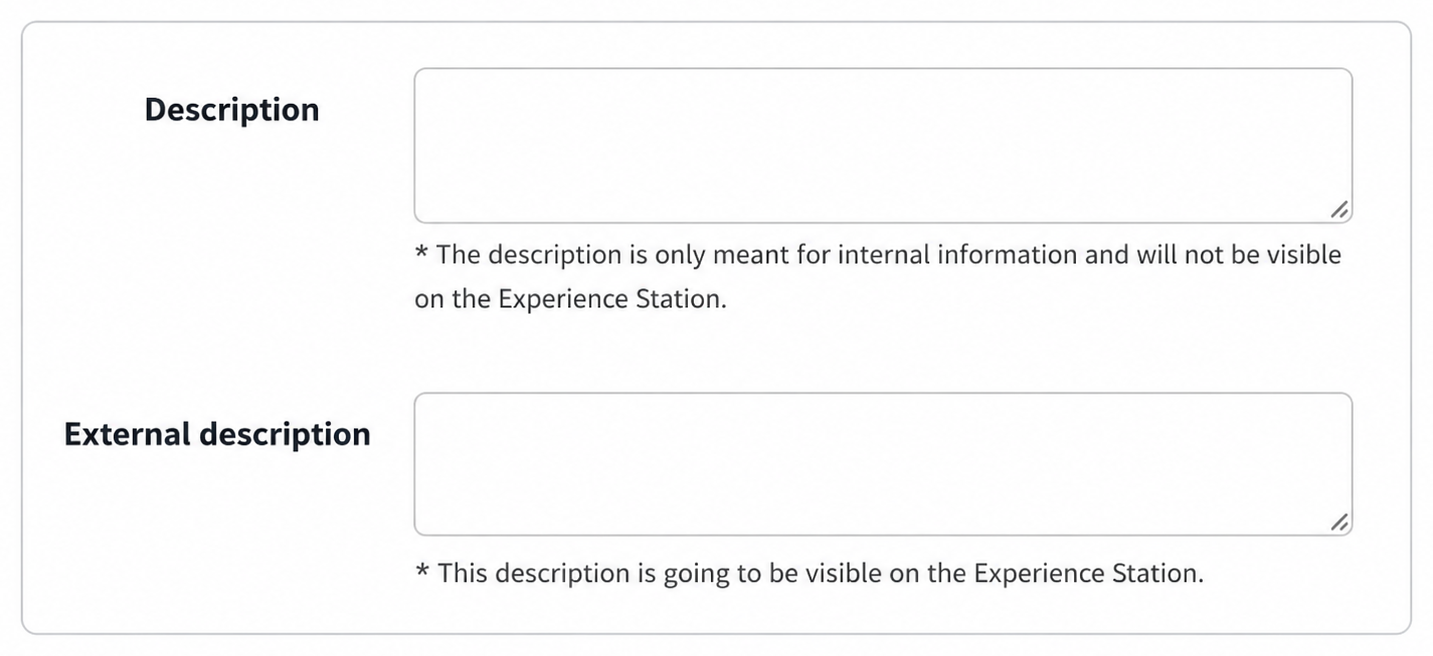
It is not visible on the FXGYM.
7. Zones
Use zones to structure what appears on each screen or station. For each zone, configure the timing and add the relevant exercise block.
Prep Time per Zone
Use Prep Time per Zone to set the transition time before a zone starts.
This gives participants time to move to the next station or prepare for the next exercise.
Add exercises to a zone
Each zone can contain its own exercise block. Add the exercise that should be shown for that specific zone.
Duplicate a zone
Use the copy button next to the zone label to duplicate an existing zone.
This is useful when multiple zones use a similar setup and only small changes are needed.
8. Warming up and cooling down
Warm-ups and cool-downs must be created separately before they can be added to a Multiscreen Workout.
To create one:
- Go to Workouts > New warming up / cooling down.
- Enter a name and select the type.
- Add the exercises and configure the timing.
- Select Save.
To add it to the workout, select + Add warming up or + Add cooling down and choose the required item.
Existing items can be edited, duplicated or deleted via Workouts > Warming up / cooling down list.
9. Final check
Before saving, check that:
- the standard workout settings are correct
- the MSS Type matches the intended multiscreen format
- the zone setup matches the workout flow
- prep time per zone is set correctly
- exercises are added to the correct zones
- the external description is customer-facing
- the assignment is correct
- warming up and cooling down are linked if needed