How to Customise Your Location Branding
Branding
Use the location branding settings to upload the logo and images displayed on supported FXGYM and FXGYM Multiscreen setups. Branding can be configured separately for each location.
Upload branding images
Branding images can be uploaded separately for each location.
- Go to Locations > Locations List.
- Select the location you want to edit.
- Scroll down to the branding and image upload settings.
- Upload the required image under the relevant field.
- Save the location.
Logo
Upload the location or company logo as a PNG file.
SVT Tablet Homescreen
This image is displayed on the home screen of the control tablet.
SVT Screensaver
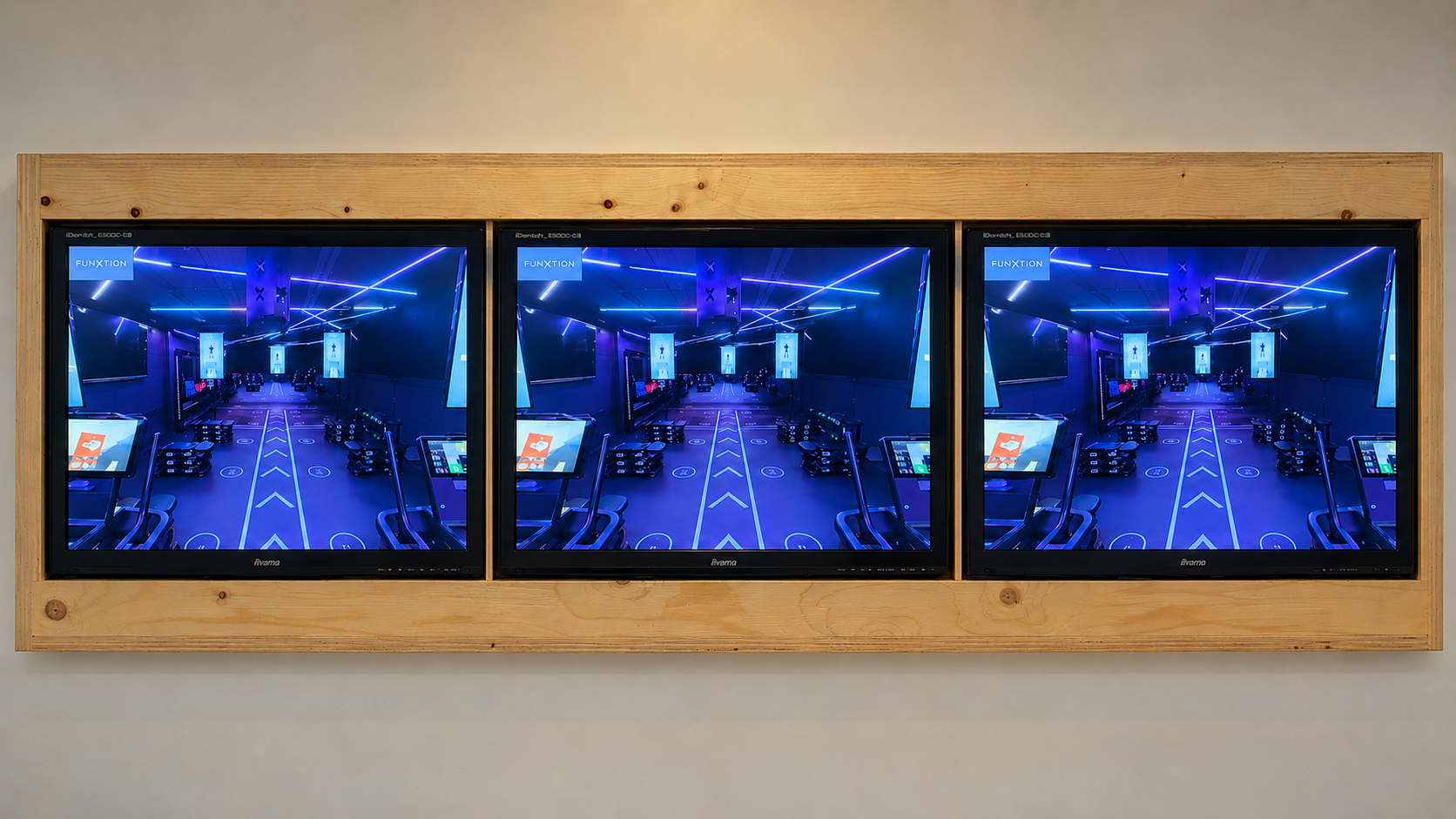
This image is displayed on the connected TV screens when no workout is active.
SVT Workout Screensaver
This image is displayed on the connected TV screens during an active workout session.
Image requirements
Use landscape images with a resolution of 1920 × 1080 pixels for the homescreen and screensavers.
After saving
After saving the location, it may take a few minutes before the new images appear on all connected devices.